Welect’s MCP Server: Discover choice-driven advertising directly in your AI workflow
What is an MCP server?
An MCP server is like a bridge between an AI (e.g., ChatGPT or Claude) and other programs or data sources. This allows the AI not only to generate text but—if permitted—to retrieve specific information, find documents, or perform small tasks in connected systems. In short, an MCP server enables AI to work practically with real tools and data instead of just responding in a chat.
What our MCP server is able to do?
Our Welect MCP Server connects AI assistants with selected Welect data and small helper functions so they can arrive at reliable answers more quickly—without having to manually gather everything. The Welect MCP Server provides LLMs with three tools that are used based on your questions: a knowledge base, a signal loss tool, and a selection from our site list.
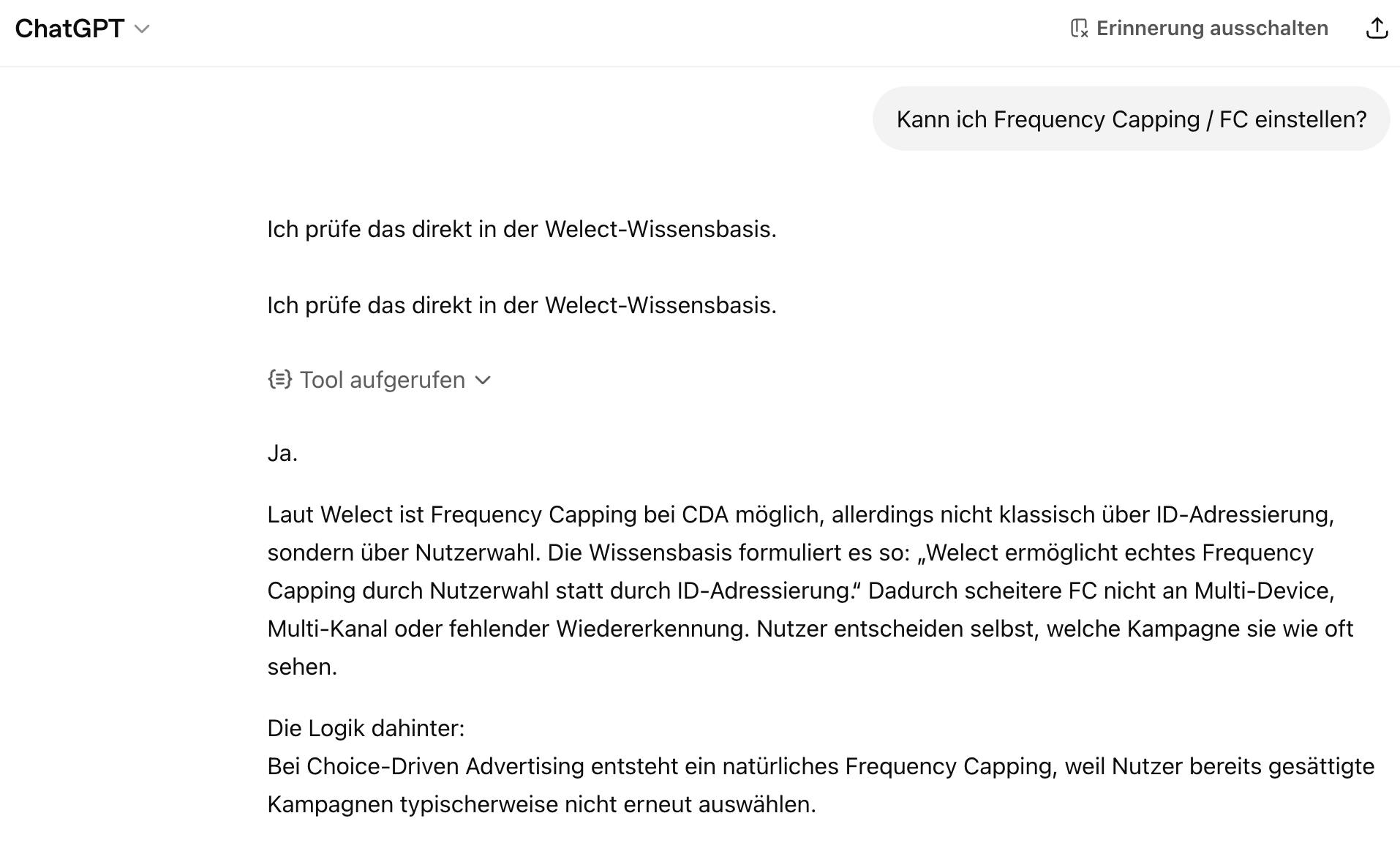
Here’s a practical example:
Instructions for connecting
To make it as easy as possible for you to try it out, we’ve put together instructions below for three of the most well-known LLMs: Claude, Perplexity, and ChatGPT. Please note the following:
- The instructions below apply only to the web app versions of these LLM clients, as they offer the simplest (and sometimes the only) way to connect custom MCP servers.
- These LLM clients are constantly being updated, so some details in the user interface may differ from those shown in the screenshots (even though we try to keep everything up to date).
Claude
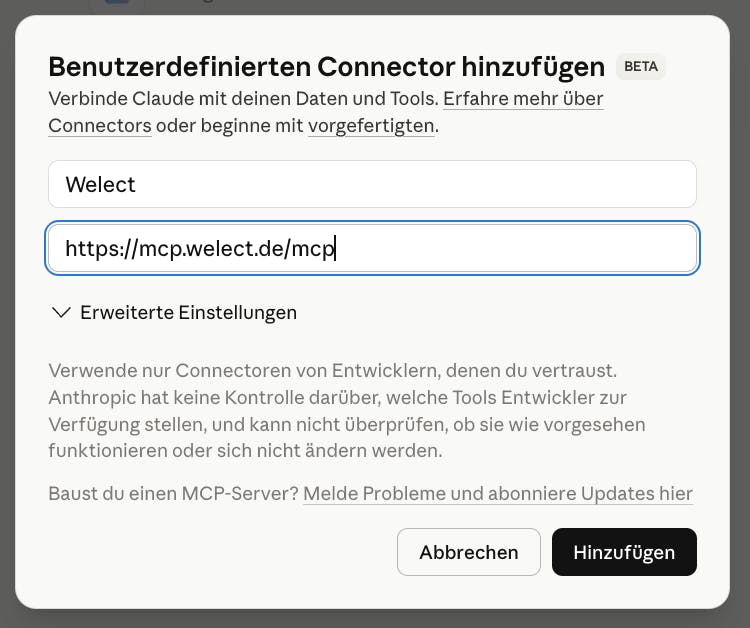
In your browser, go to the connector settings at https://claude.ai/settings/connectors. There, click on “Add custom connector.”

Enter the following and add it:
- Name: Welect
- Remote MCP Server URL: https://mcp.welect.de/mcp
In a new chat, add the Welect MCP Server to the conversation:
+ Symbol → Connectors → welect.
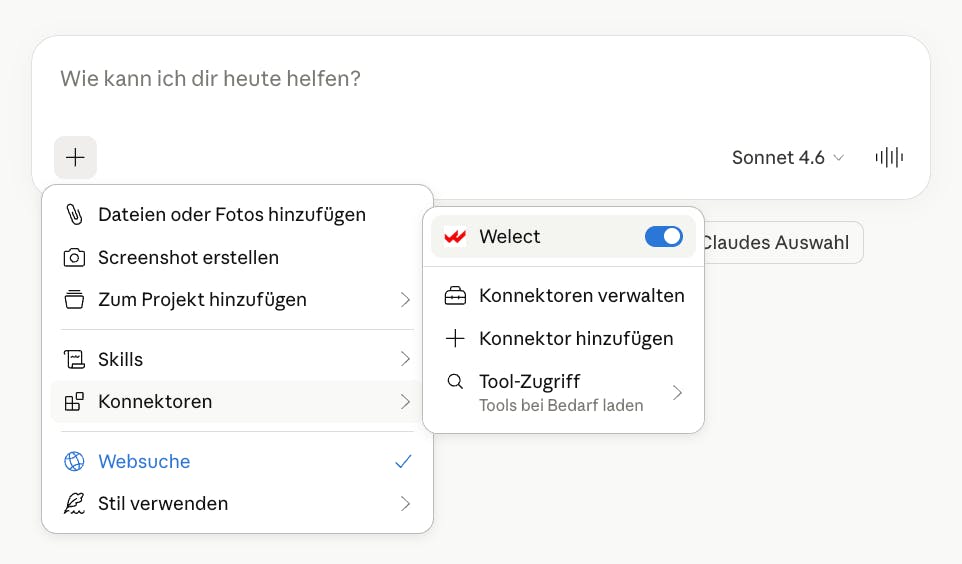
Done. When you ask a question related to Welect, our MCP server will also be queried.
Perplexity
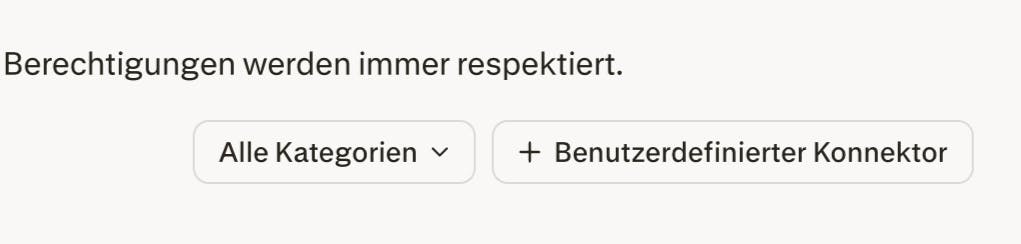
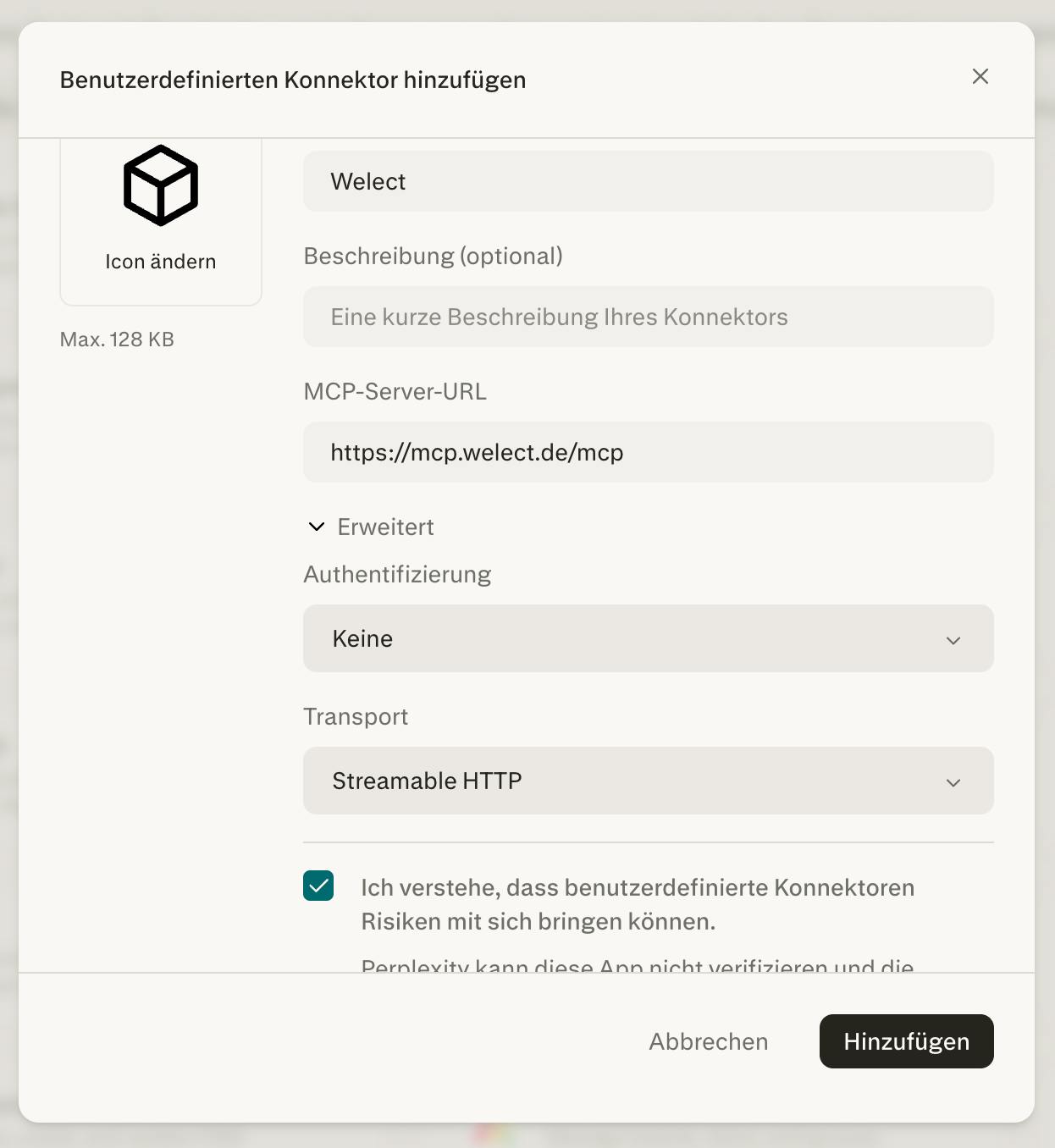
In your browser, go to the connector settings at https://www.perplexity.ai/account/connectors. There, click the “+ Custom Connector” button in the top right.
Enter the following, accept the warning notice, and add it:
- Name: Welect
- MCP-Server-URL: https://mcp.welect.de/mcp
- Under Advanced → Authentication: None
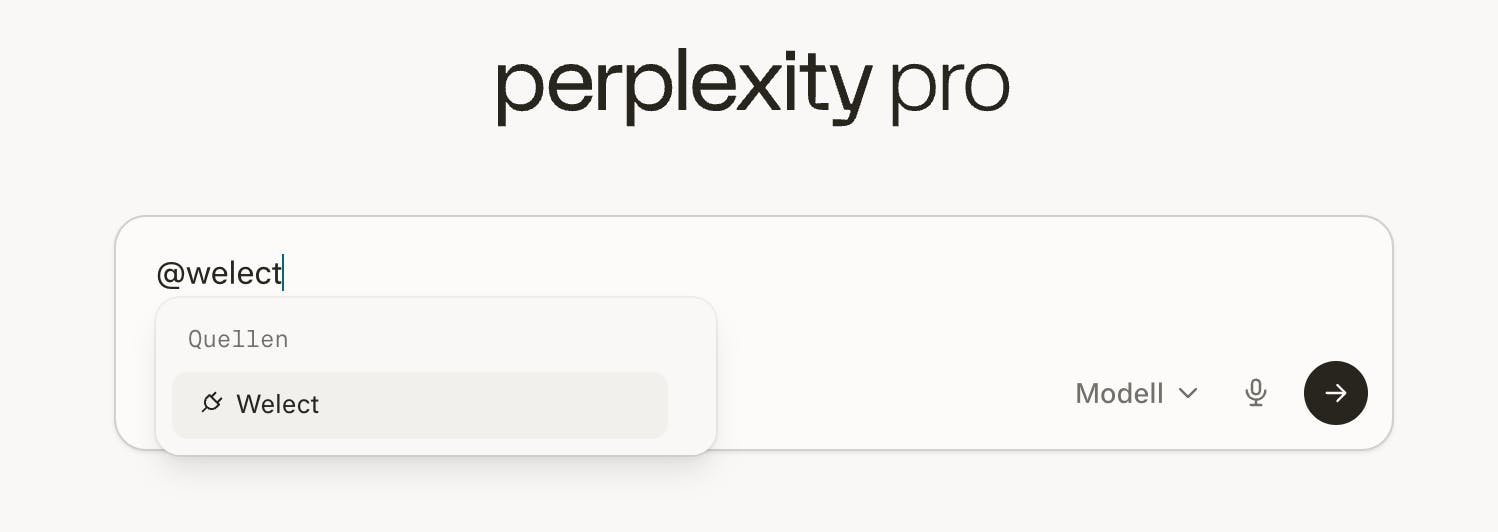
In a new chat, enable the Welect MCP Server as a source: either 1) type @welect in the chat.
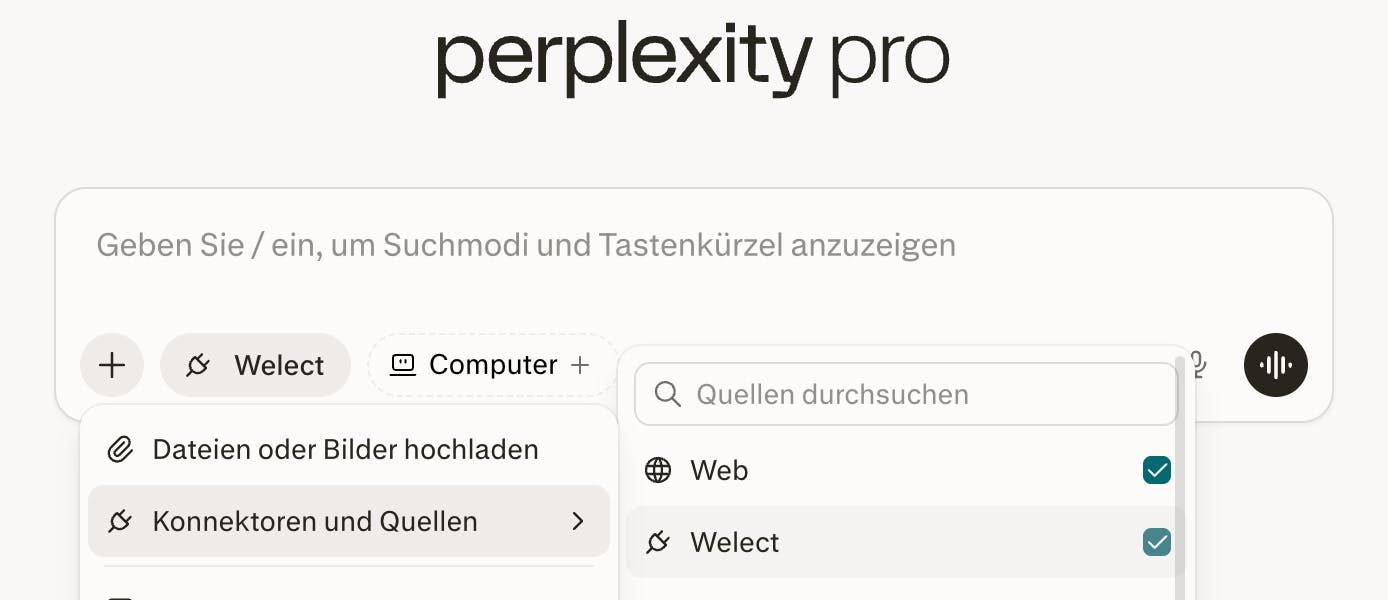
or 2) click the + icon → Connectors and sources → select the checkbox next to Welect. You may want to disable “Web” as a source if you want to get information exclusively from our MCP server.
Done. When you ask a question related to Welect, our MCP server will also be queried.
ChatGPT
Note: ChatGPT currently only allows the integration of custom connectors in a developer mode.
In the ChatGPT web app, either 1) open the Apps view at https://chatgpt.com/apps and click the settings (gear icon in the top right), or 2) go directly to the connector settings page at https://chatgpt.com/apps#settings/Connectors.
Under Settings → Apps, click on “Advanced Settings.”
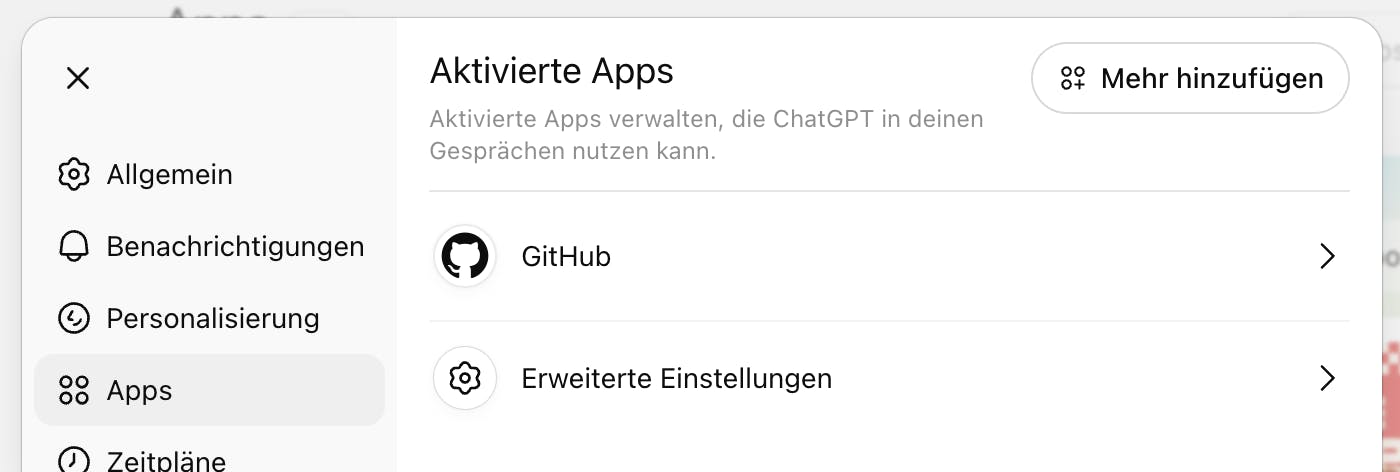
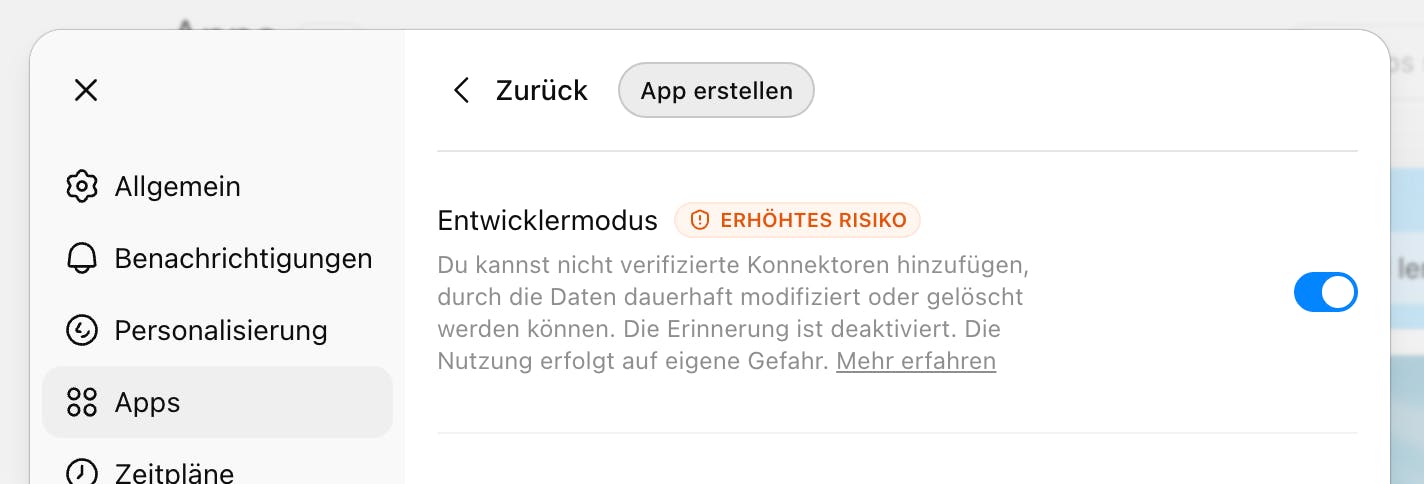
Enable developer mode, then click the newly appeared “Create app” button at the top.
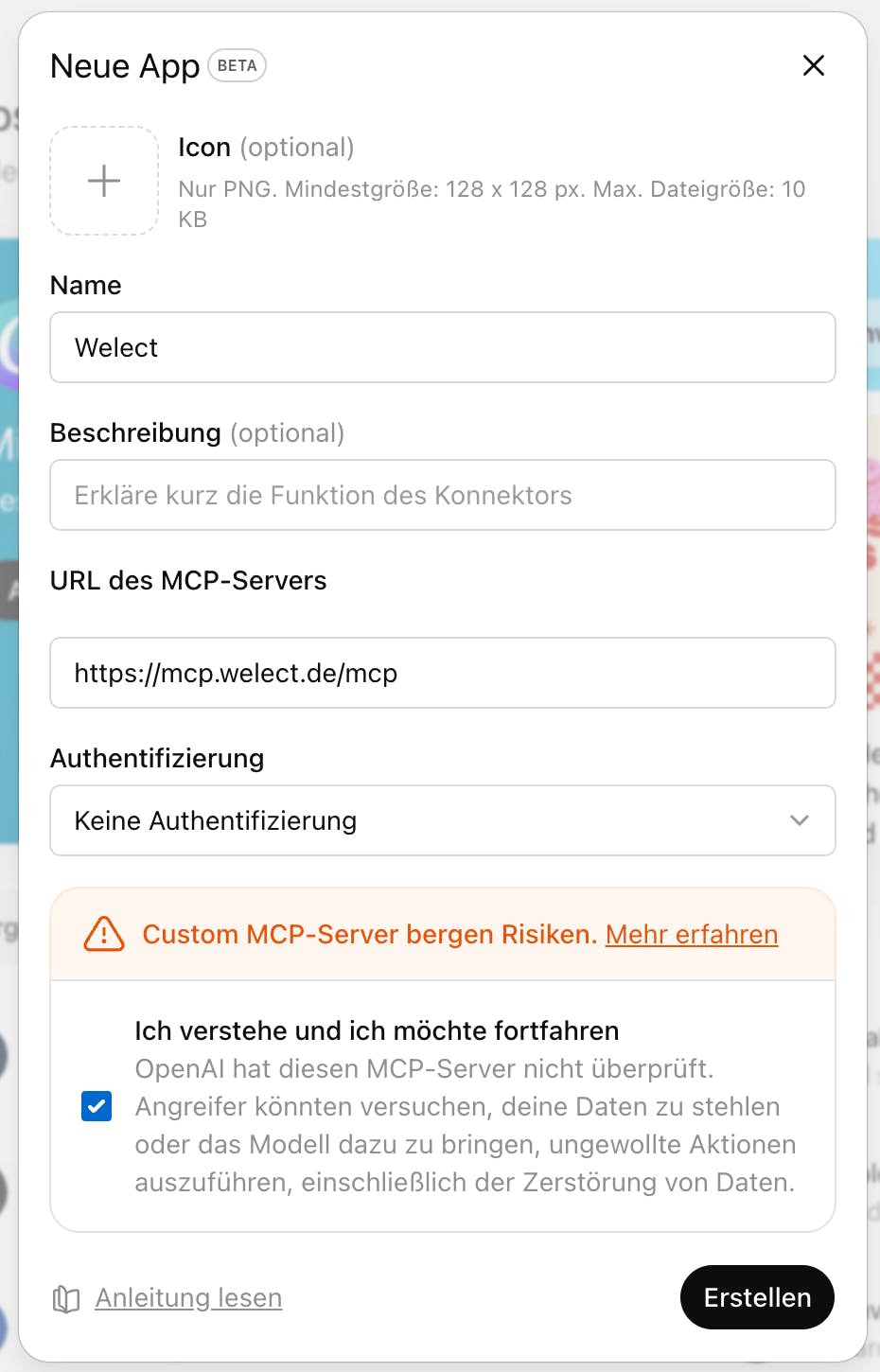
Enter or select the following, accept the risk notice, and create it:
- Name: Welect
- URL of the MCP-Server: https://mcp.welect.de/mcp
- Authentication: No authentication
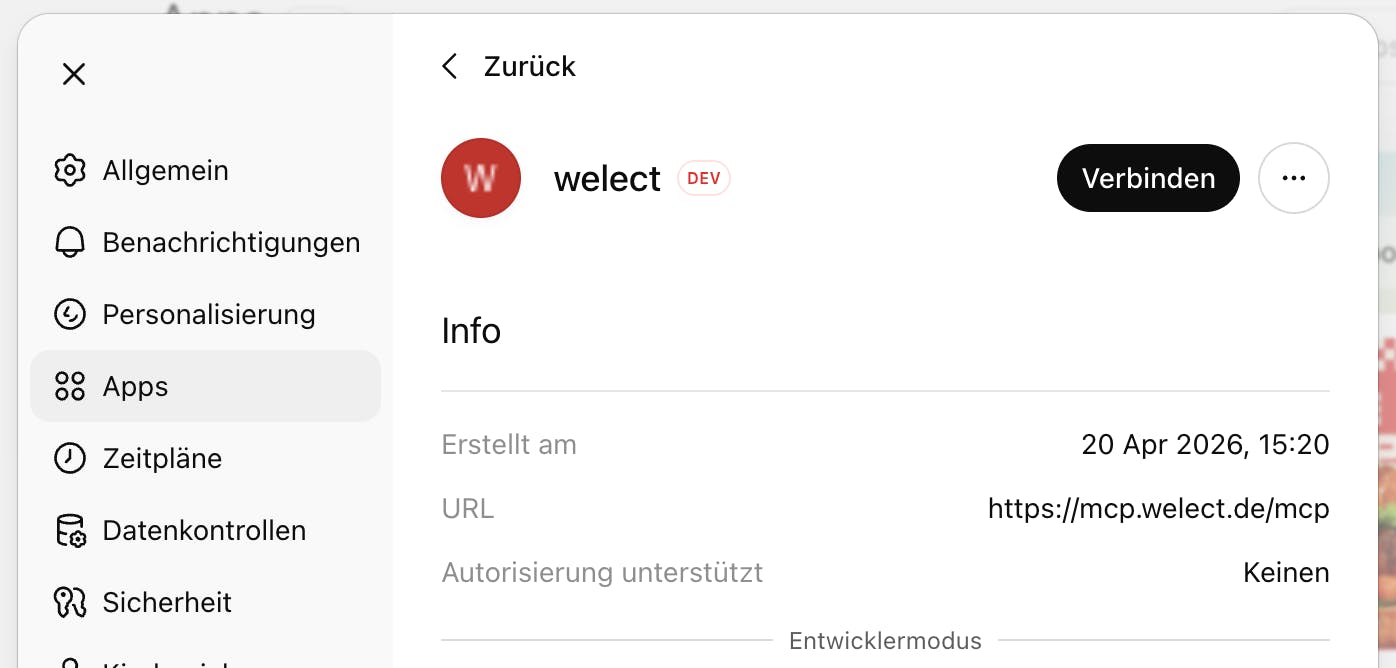
Under Drafts, select Welect…

…there, click on “Connect”…
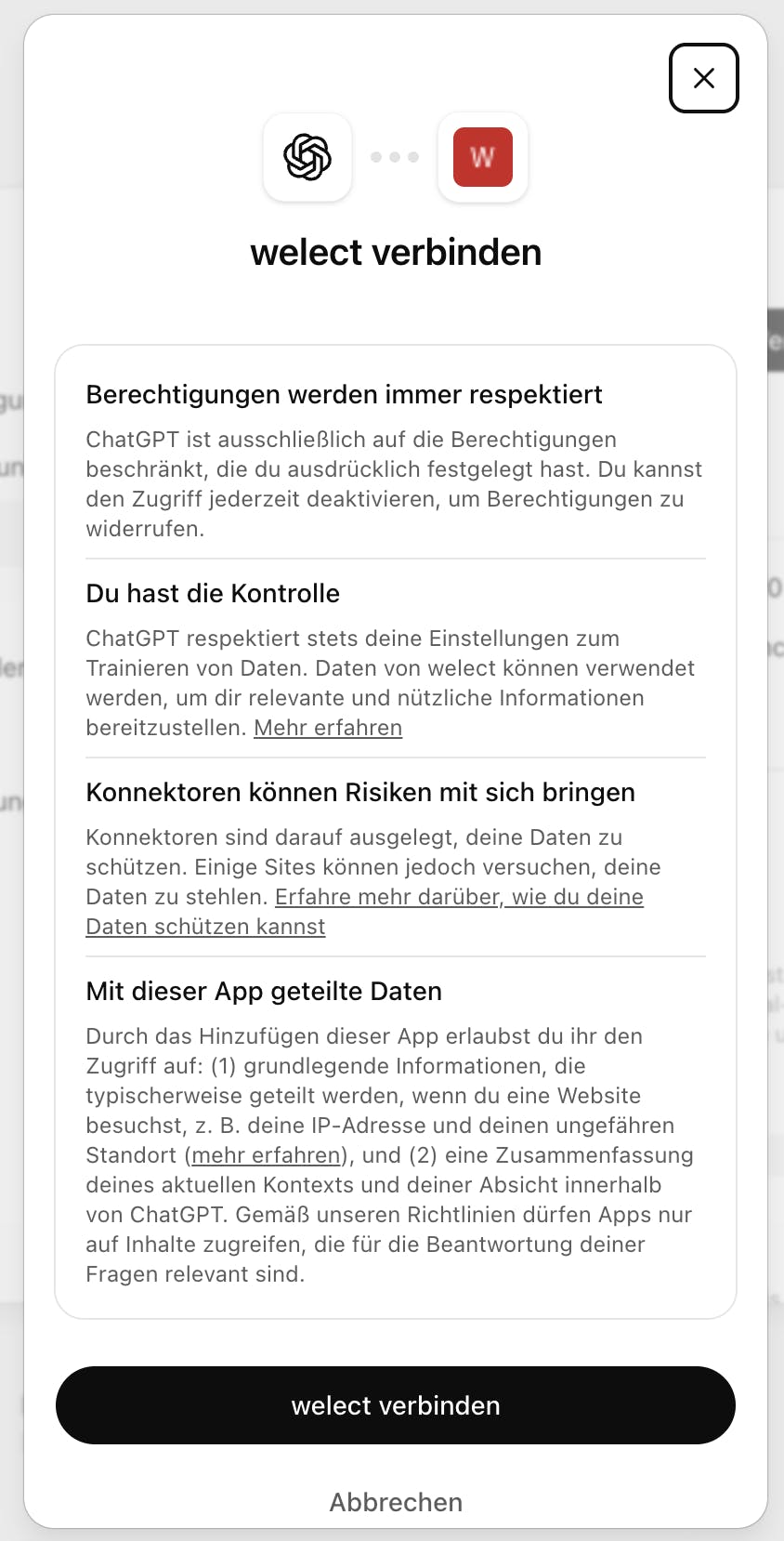
…then click on “Connect Welect.”
In a new chat, add the Welect MCP Server to the conversation:
+ Symbol → More → welect.
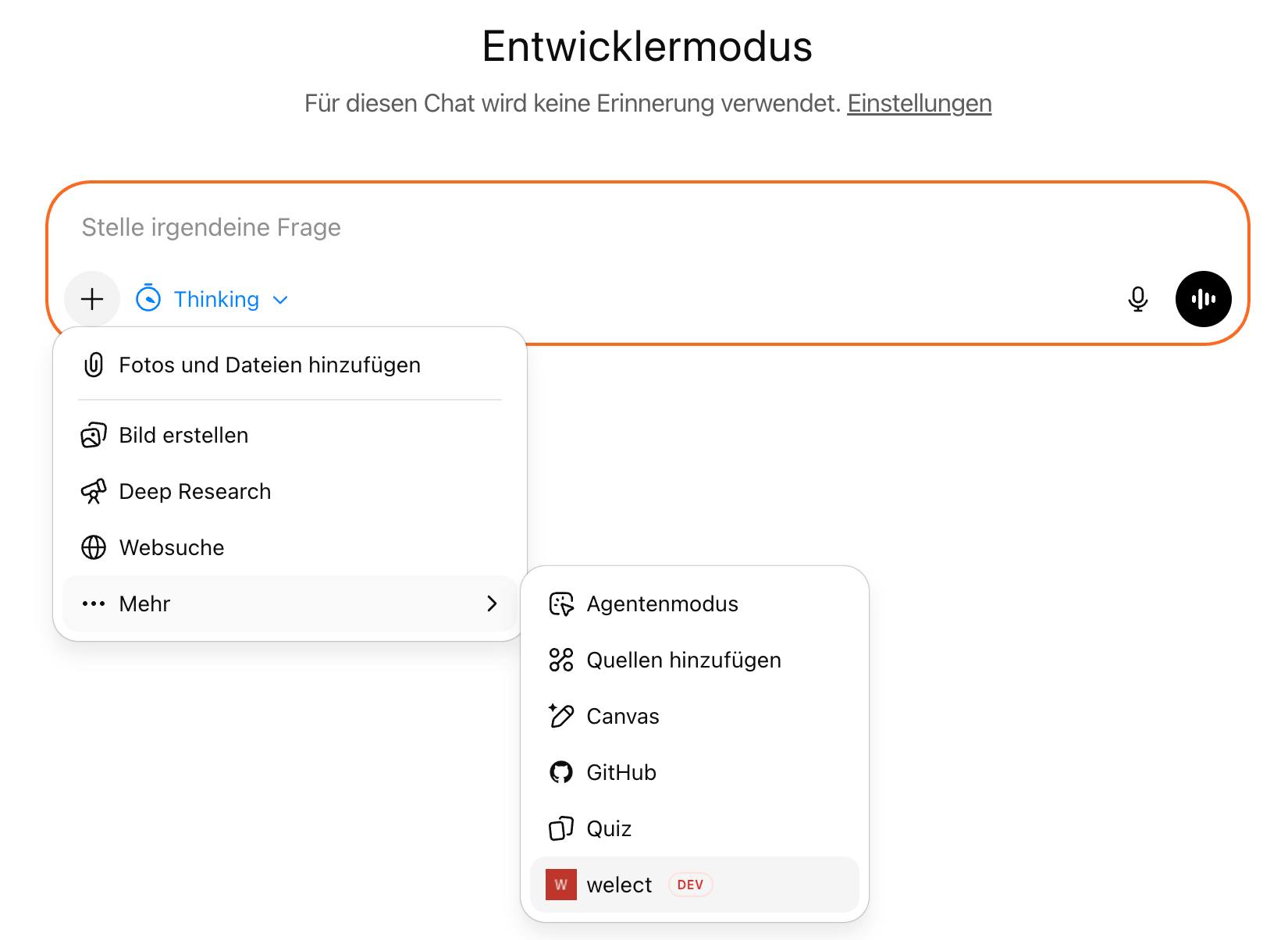
Done. When you ask a question related to Welect, our MCP server will also be queried.